Geek News: Latest Technology, Product Reviews, Gadgets and Tech Podcast News for Geeks


Tag: Screenshots

Take Screenshots with a Non-Rooted Android

Posted by Alan Buckingham at 6:38 PM on September 27, 2011

Whenever I write an article about Android I inevitably get two questions – One, is my phone rooted?  And two, if not, how do I take screenshots?  I decided that the easiest way to answer those two questions was to write a post detailing my answers.  However, if you want really quick answers, they are 1) No, and 2) It’s easy.

There are quite a few apps available in the Android Market that allow you to take screenshots of your device, but all (at least all that I have looked at) require your phone to be rooted.  There’s nothing wrong with rooting your device, and it can allow you to do a lot of things that aren’t otherwise possible, but I had no real need for it, outside of screenshots that are necessary for my writing.

Fortunately I found a simple way around the rooting requirement, and it’s even made by the Google Android team.  If you are a developer, then you will likely already know where I am going with this, but for the other users out there, I am talking about the Android SDK (software developer kit).  You can download it from here.

Once it’s installed, click your Start menu and look for Android SDK and click on DDMS, which stands for “Dalvik Debug Manager”.  No, I don’t know what the “S” is for, so if anyone does, please chime in.

Once, DDMS is up and running, and your phone is plugged in to the computer, click on your device to highlight it.  I have found it best to plug in the device BEFORE opening DDMS, but your results may vary.

If you don’t see your device listed, then you may want to check what USB mode it is in.  Again, your experience may vary, but it seems for mine that it requires it to be set as a USB Mass Storage device.

Now, in DDMS, click “Device” and choose “Screen Capture”.  You will be presented with several options, including Refresh, Rotate, Save, Copy, and Done.  I prefer Copy, which allows me to paste it into a photo editing program for further refinement, if any is needed.

That’s actually all there is to it.  It’s very simple to set up and use, and being able to to grab your screenshots without doing what is a very scary process for many users (rooting) is what the Visa ads call “priceless”.  Of course, many users probably have no need for this type of functionality, but for those who do this should simplify the process.

Windows 8 Screenshots Starting To Leak

Posted by Alan Buckingham at 12:00 PM on April 3, 2011

Windows 8 continues to move closer and closer to reality.  In fact, we can expect the first public beta before the end of this year.  To illustrate just how close we are getting, Rafael Rivera, a Microsoft insider (not employee), has begun posting screenshots recently.

The first shot went up April 1st, and probably a lot of people took it as April Fool’s, despite the disclaimer that it wasn’t.  The next post, on April 2nd, introduce several shots of the new ribbon interface that is coming to Windows Explorer in the next version of the operating system.

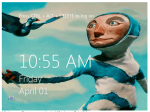
The Windows 8 Welcome screen has a user-customizable background image (thankfully we don’t all have to see the creepy picture below).  It also displays the current date and time, power options, and the classic Ctrl+Alt+Delete instructions to unlock the screen.

The Windows 8 Explorer interface will be receiving the ribbon interface that was first introduced in Microsoft Office 2007 and refined in Office 2010 and also introduced to Live Essentials.  Like the Windows Phone 7 Metro UI, the ribbon seems to be Microsoft’s UI of the future.

If you want to see more of the Explorer screenshot you can visit Rafael’s site at Within Windows.  It looks like these screenshots will keep coming over the next few days or weeks or even months.  I am now anxious for that first public beta!  Windows 7 was a huge improvement, but Windows 8 looks to be even more impressive.